-30%
Jamaican Black Castor Oil
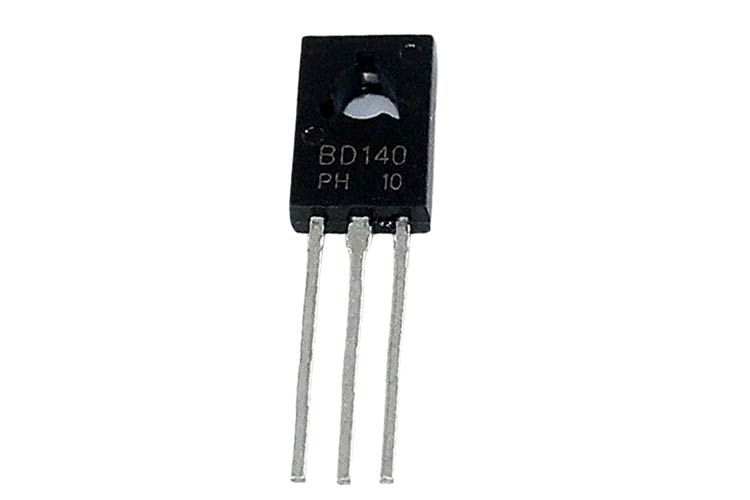

DescriptionThis is an RFID reader that supports up to 2000 users, It is sensitive and offers a quick fast response.The system supports:2000 standard userscard passwordcard plus passwordPassword plus card.Can add card number and delete card number as your requirement.Specification:Working voltage: DC 12VUnlock current: ≤1000mAStatic current: ≤60mAMemory: 2000 standard usersCard read distance: 0-10 cmRF type: EM cardWorking temperature: -10 ~ 70 CWorking humidity: 10% to 90%Dimension: 11.7×11.7×2.1 cmFrequency: 125 kHzProfessional design, great for home, office it is Ideal for homes and offices How to get started with RFID Access Control system 1. IntroductionThis series of RFID card access control is working with 125 Khz card only, password only, card password, or password working in one single door controller. It uses the chip that is up to industrial grade single chip. With high stability, large capacity, full function, and reaction fast and simple operation. It is best if used on company office, factory, houses, residential quarters and so on.2. Functionsi. Storage 2000 card (ID/ IC optional)ii. Can be continuous-read and enroll card, and automatically default the card number and card password.iii. With these 2 functions: Swipe card for opening the door or Swipe card for closing the door.iv. The signal for opening the door is output bu relay control directly (NO / NC optional).v. Three modes for opening the door: Card or PIN, Card Pin, Password.3. Technical featuresNoItemSpecification1Power supplyDC: Voltage 12±10%;current<0.1A2Max OutputSolenoid Door lock output:2A3Ambient temp-10℃—70℃4RH20%—90\apacity2000 user card and 1 password6Reading distance5—15cm7Card typeProximity or Mifare cardPinout DescriptionRed (9-12V DC)Positive Input ( Supply the system)BlackGNDGroundGreenNCNormally ClosedFor relay signal outputWhiteCOMCommon GroundBlueNONormally OpenYellowOPENPush/Exit Button, the others connect to GNDGrayGND4. Status IndicationDescriptionRed LEDGreen LEDBuzzerNormal ModeONProgram ModeFlashUnder Program modeONSwipe Non registeredCardONDi(long)Swipe Card OnlyON, the door is openat the same timeDi Di (short)Card and PasswordMode (after swipe card,pending for passwordentry)Red and Green LEDblink interactivelyCard and PasswordModeFlash red LCD each0.5 secondPassword Only ModeFlash red LCD each1 secondKeypadDi (short)Setup SuccessfullyDi Di (short)Setup FailureDi (long)Invalid InputDi (long)AlarmDi Di DiContinuously5. Programming Guidei. How to get into Program ModePress # x 4, Red LED OFF, Green LED ON. Then press 123456#. if it is successful, Green LED flashes ON, or RED LED ON and Green LED OFF that means you failed. Try again (Provided that you didn’t change your default Program password. The default is 123456.ii. How to change your Program passwordIn program mode, press 0 “new password” #”new password”n# (new password must be in six digits format)iii. How to add cards continuously with automatically card number assignmentPress “1” and swipe card (swipe card continuously… apply to unregistered card only), after swipe card, press #.The controller will assign each registered card with individual card number and password (default password is 888888, Card Pin just applied to Card Password mode). You can change this password following the changing step.If this is a newly installed controller, the card number will be started at 0001, 0002 and so on. If this controller has registered cards, the card number will be started after the last registered card’s number. If this is a registered card, the controller will Di(long) for warning and swipe the next new card.iv. How to add a single card with card number ( can be multi-cards operation as well)In program mode, press 2 (swipe card … apply to unregistered card only) XXXX “Card number” #(repeat this step until the last card)#If this is a registered card, the controller will DI(long)for a warning, you still can continue your operation by swiping another new card. If this is a registered card number, the controller will Di(long)for a warning, you still can continue your operation by entering another card number.v. How to delete a card In program mode, Press 30 (swipe card)# Means this swipe card is for deleted (Apply to multi-card delete operation) Press 31(input card number)# # Means this card is deleted (Apply to multi-card number delete operation). Press 32 9999 # Means all registered cards are deletedvi. How to set the access mode In program mode, Press 40 # Means this controller is in Card Or Password mode(Default value) In program mode, Press 41 # Means this controller is in Card And Password mode In program mode, Press 42 # Means this controller is in Password modevii. How to set door access duration In program mode, Press 5 and input 03 # Means the access duration is 3 seconds If you set its max value into 99, it will change to Card Open and Card Close operation.viii. How to set an access password ( default access password is empty, it is not activated yet) In program mode, Press 6 (new password) # (new password) # ,then it is ok. But it must be in 6 digits format Press 6 # # Password will be deactivatedix. If you want to exit Program mode, pls press * to exit e the program mode)x. How to change card password (It apply to Card And Password mode only) In program mode, Press * (Green LED ON)(swipe registered card)(input old password)(Red and Green LED flashed alternatively)(input new password)#(input new password again)# If Green LED OFF, Di Di(short), it means changing this card’s password successfully. If Di(long), it means you fail to complete this operation. Please try again.xi. How to reset to the factory default value ( only reset password and system parameters, the card won’t be deleted) Cut off the power, put the JP4 jumper in 1-2 position and turn on the devices. After DI DI(short), put the JP4 jumper in the 2-3 position. Then restore factory setting successfully.6. Resources:RFID ACCESS CONTROL User manual